Apple Push Notification Service (APNs) Setup Guide
Complete guide to configure APNs Push Certificate for MDM communication
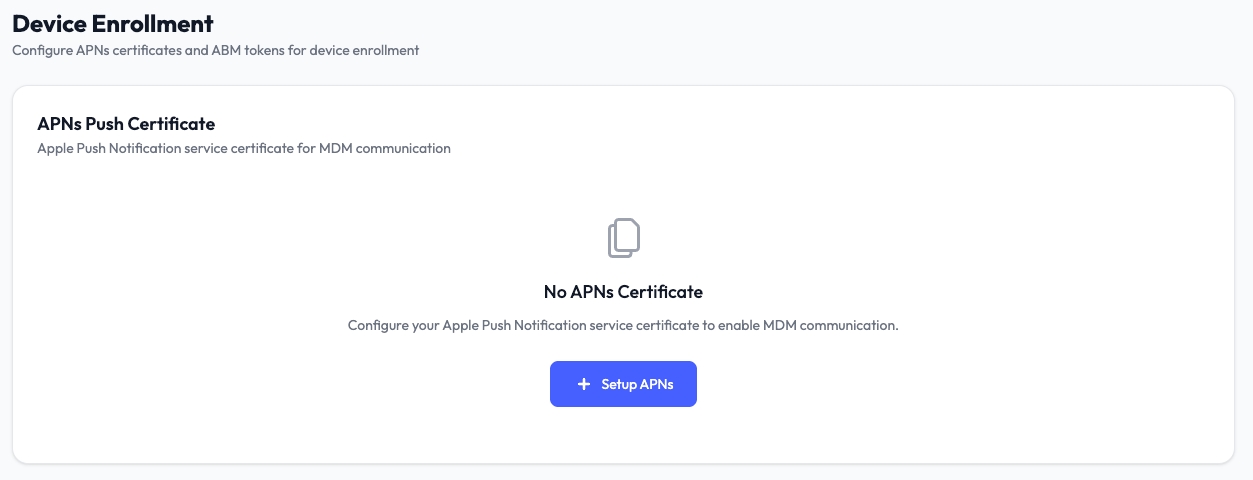
Step 1: Click Setup APNs
Navigate to your Guard MDM dashboard and find the APNs configuration section. Click the "Setup APNs" button to start the APNs certificate setup process.
Step 2: Download CSR
Once the setup process begins, click the "Download CSR" button. This will download a Certificate Signing Request (.csr) file to your computer, which you'll upload to Apple in the next steps.
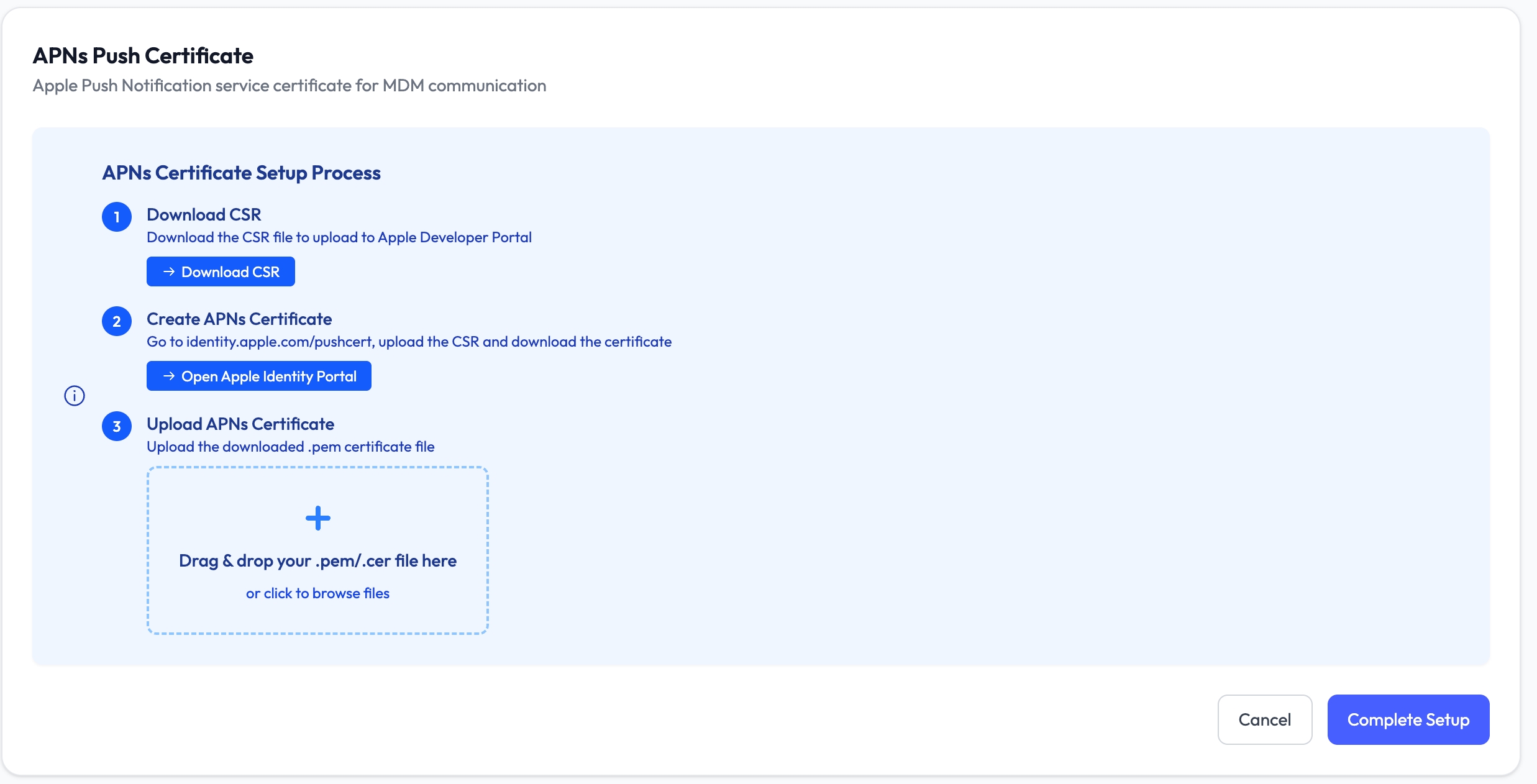
Step 3: Go to Apple Identity Portal by clicking the link on the "Open Apple Identity Portal"
Click the "Open Apple Identity Portal" link that appears on the setup page. This will open Apple's developer portal in a new tab. Make sure you have an Apple Developer account ready to sign in.
Step 4: After logging in, Click Create a Certificate
Once you're logged into the Apple Developer Portal, locate and click the "Create a Certificate" button to start generating your APNs certificate.

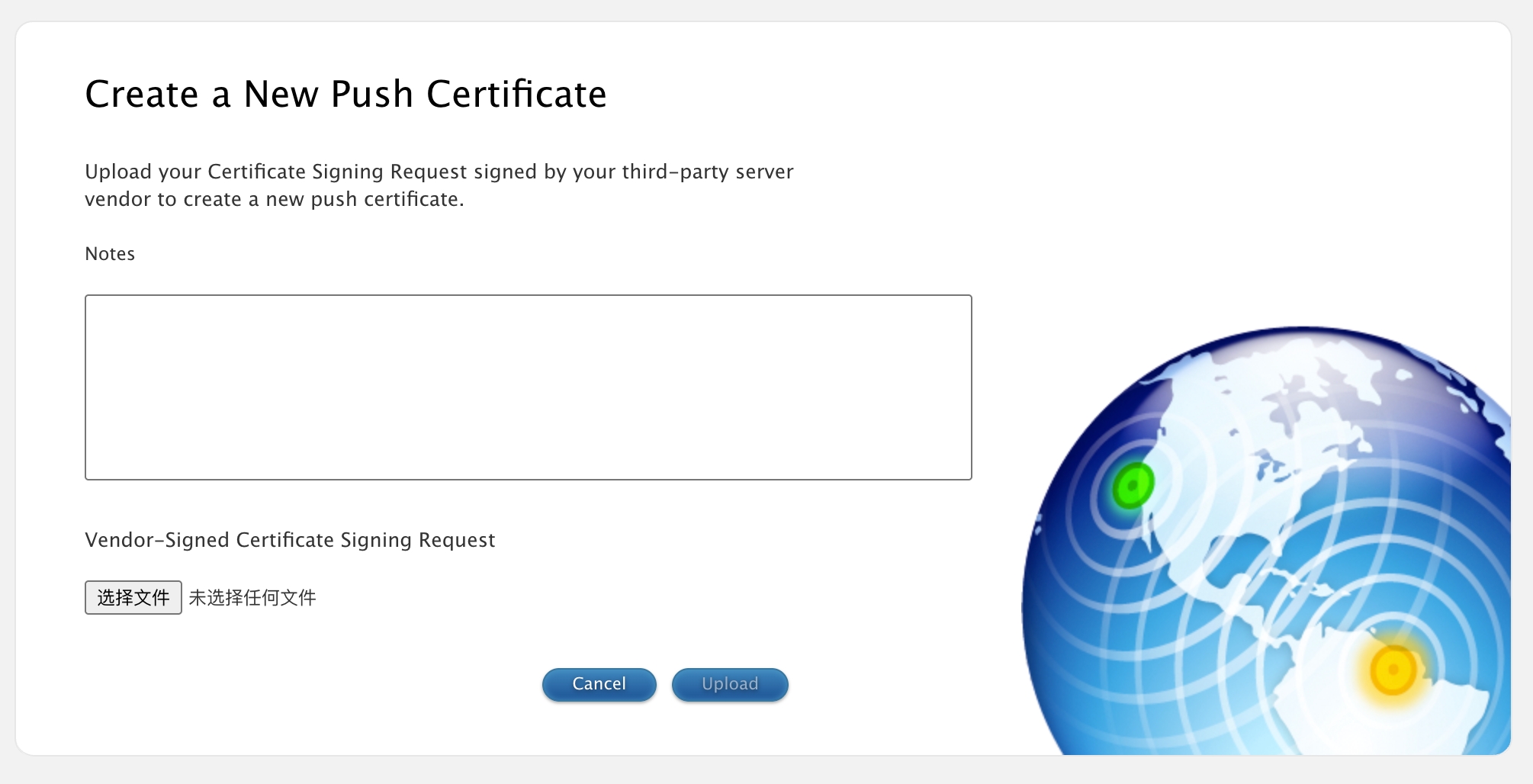
Step 5: Upload the CSR file which you downloaded previously
Browse and select the CSR file you downloaded in Step 2, then click upload. Apple will process this file and generate your APNs certificate based on the request.
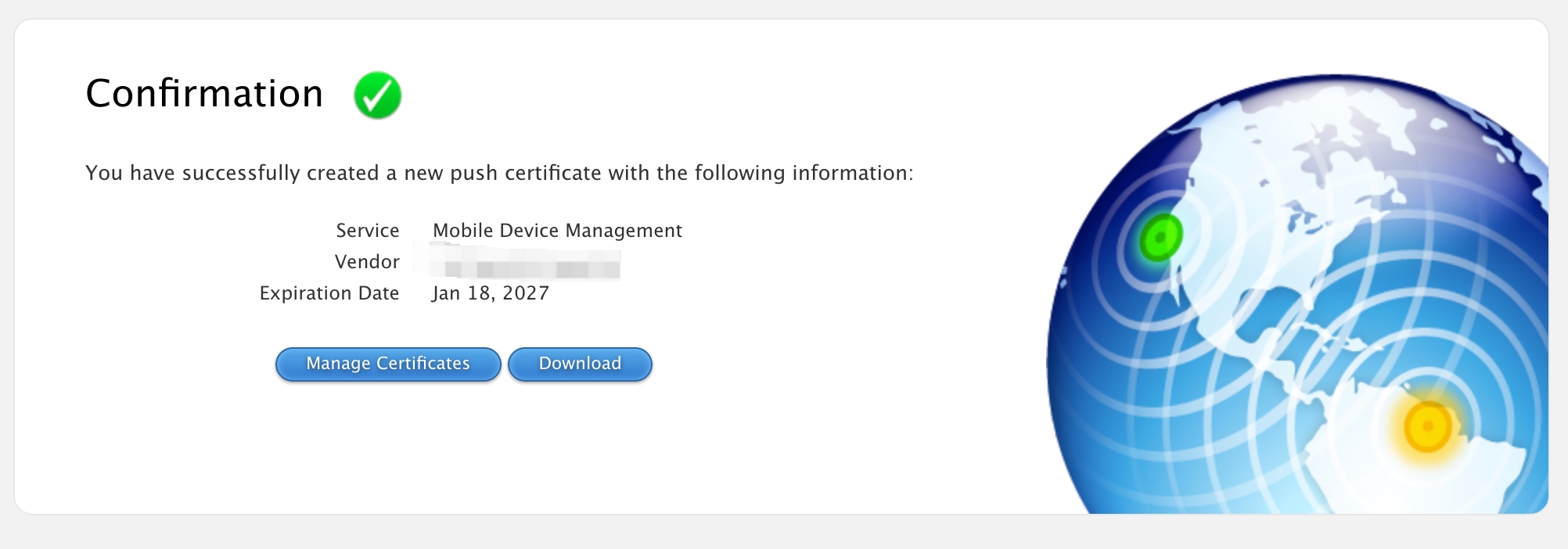
Step 6: After uploading the CSR file, you can download your APNs certificate
Once the CSR upload completes successfully, a download button for your APNs certificate will appear. Click to download the certificate file (.pem format) and save it securely - you'll upload this back to Guard MDM to complete the setup.