Apple Business Manager (ABM) Setup Guide
Complete guide to configure Apple Business Manager integration with Guard MDM
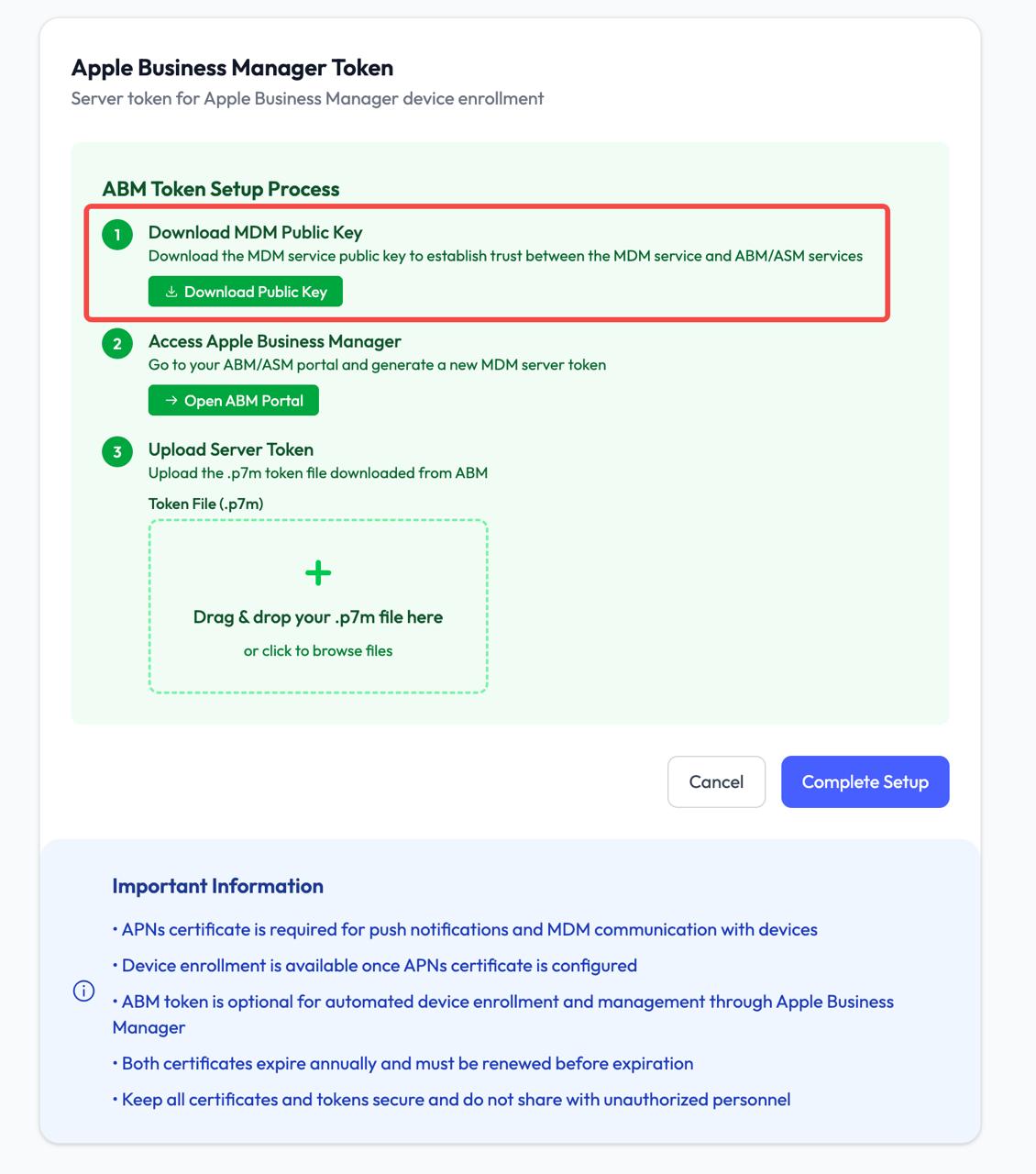
Step 1: Download MDM Public Key
Start by downloading the MDM public key from the Enrollment page. Click the "Download Public Key" button in the ABM setup process to get the required certificate file.
Step 2: Login to Apple Business Manager
Access your Apple Business Manager account at https://business.apple.com. Sign in with your administrator credentials.
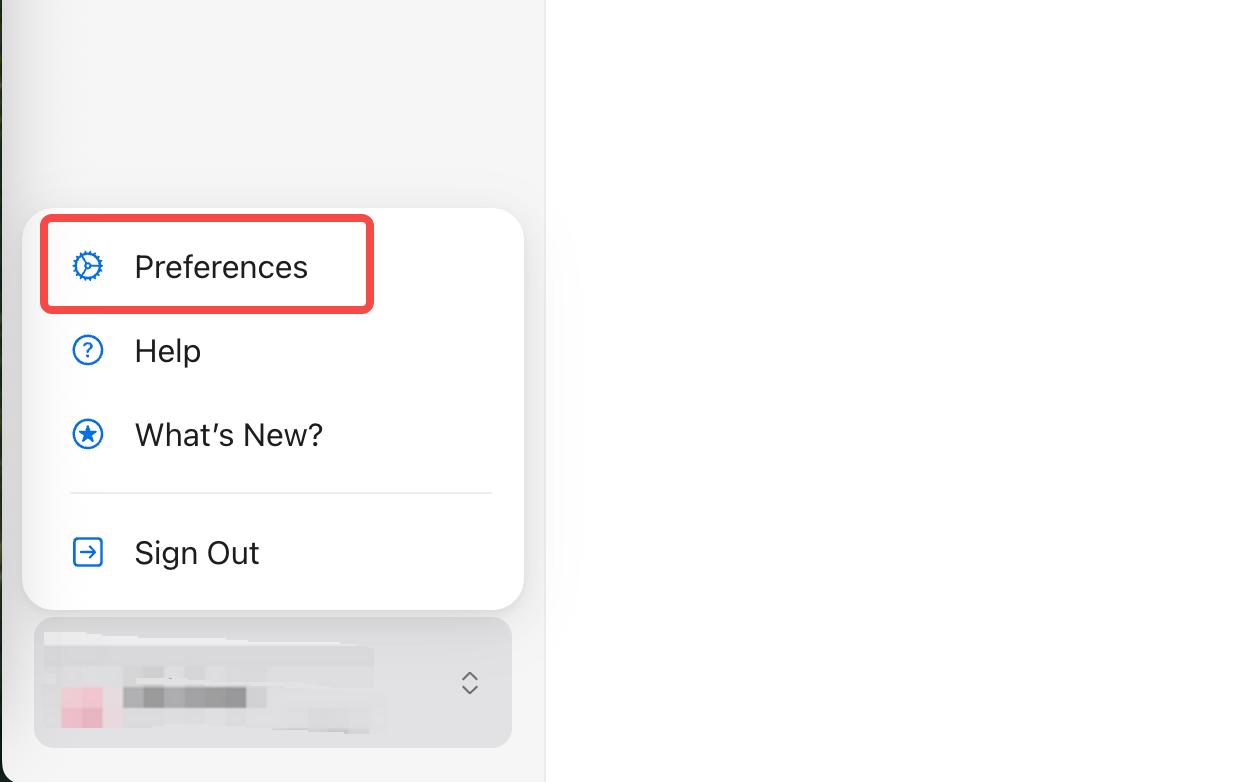
Step 3: Access Preferences and Device Management
Click on your account name in the bottom left corner, then select "Preferences" from the dropdown menu. Navigate to the "Device Management" section.
Step 4: Add MDM Server
In the Device Management Services section, click the "Add" button next to MDM Server. This will create a new MDM server entry for Guard MDM.
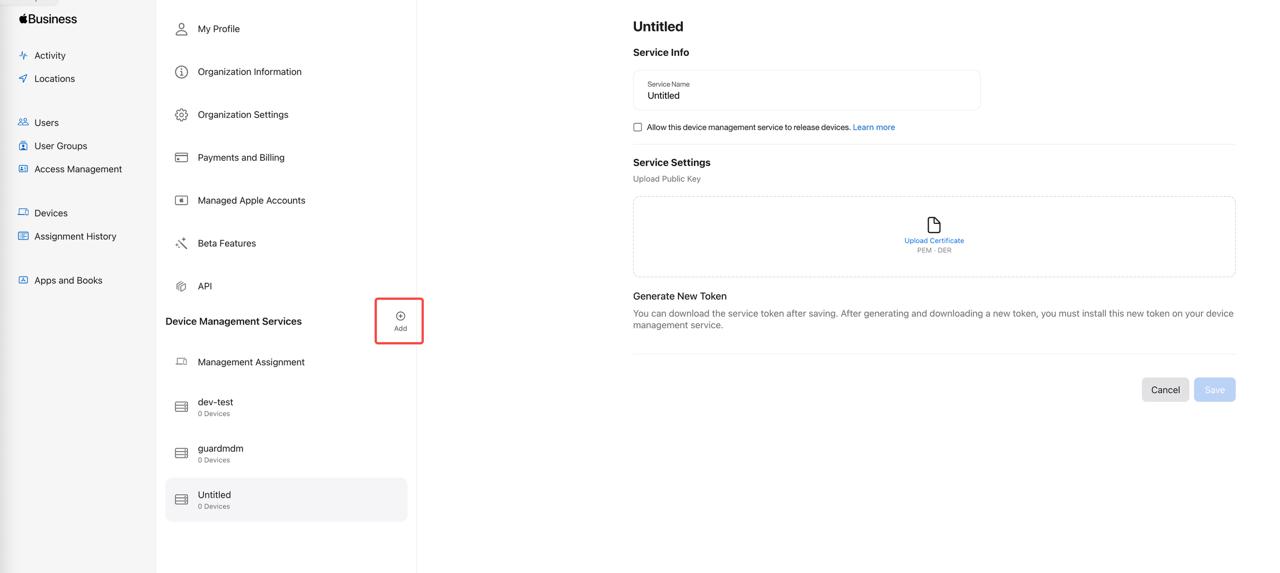
Step 5: Upload Public Key
Fill in the MDM server details and upload the public key file you downloaded from Guard MDM in the "Service Settings" section.
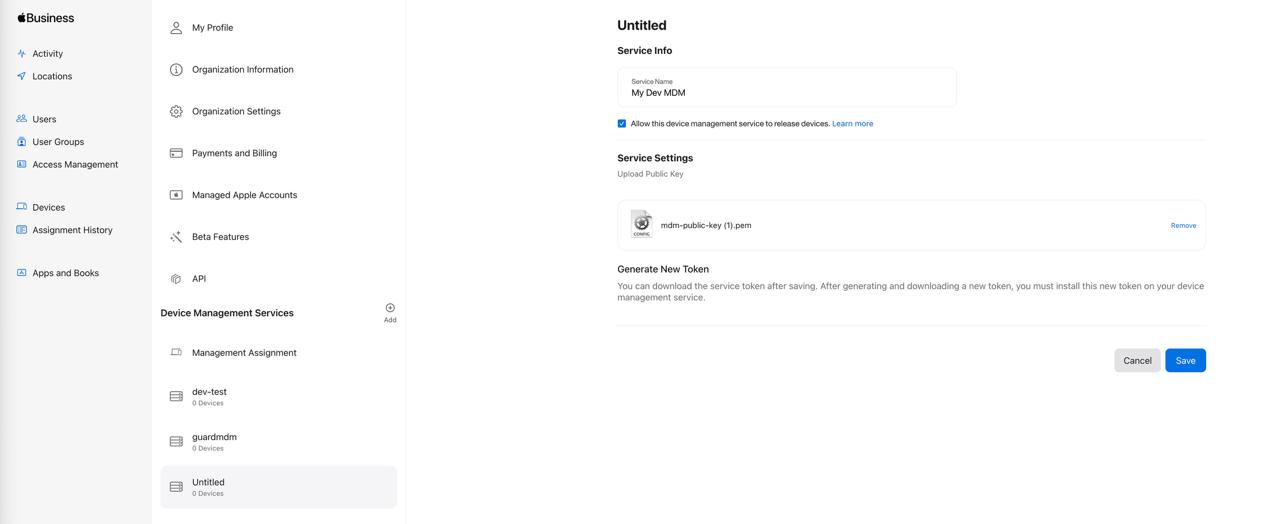
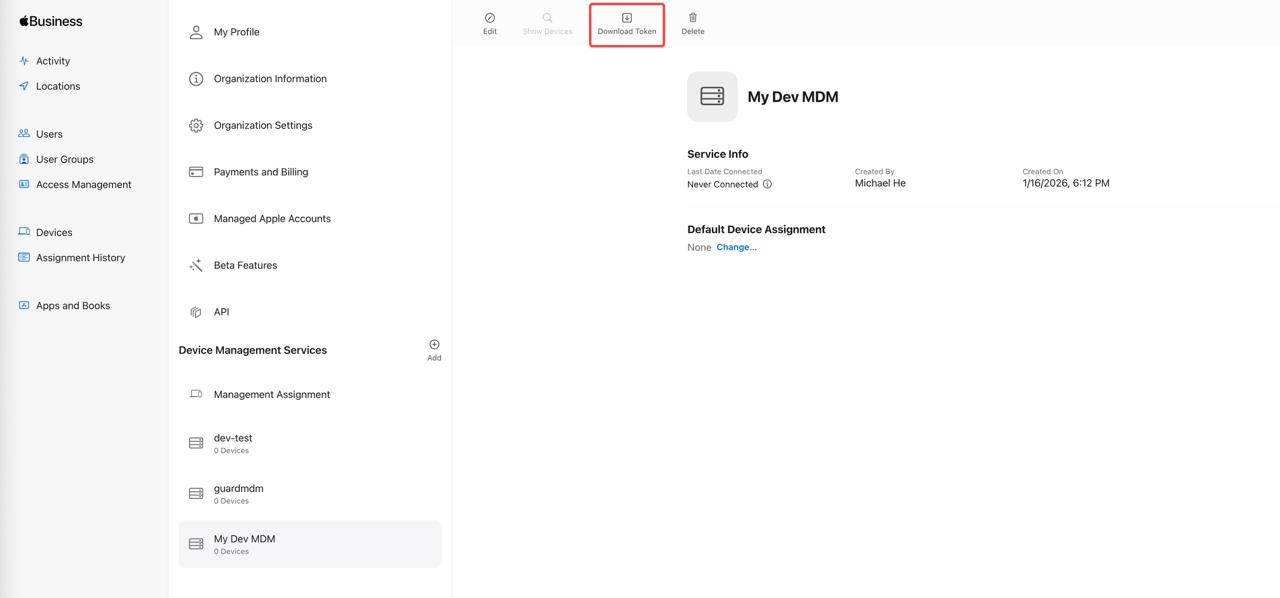
Step 6: Download MDM Server Token
Go to your https://business.apple.com ABM/ASM portal and generate a new MDM server token. Download the token file (.p7m) after it's created.
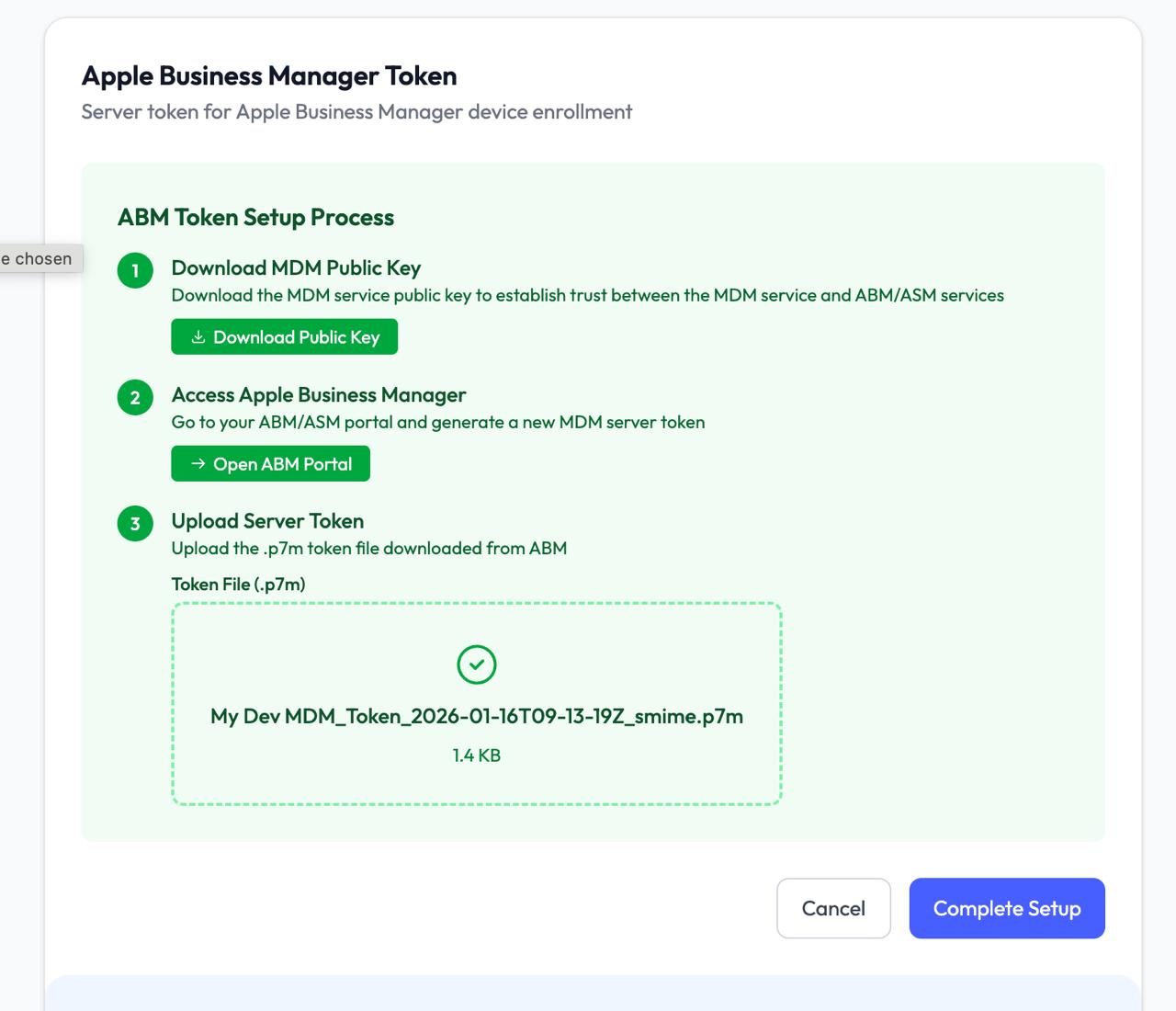
Step 7: Upload Token to Guard MDM
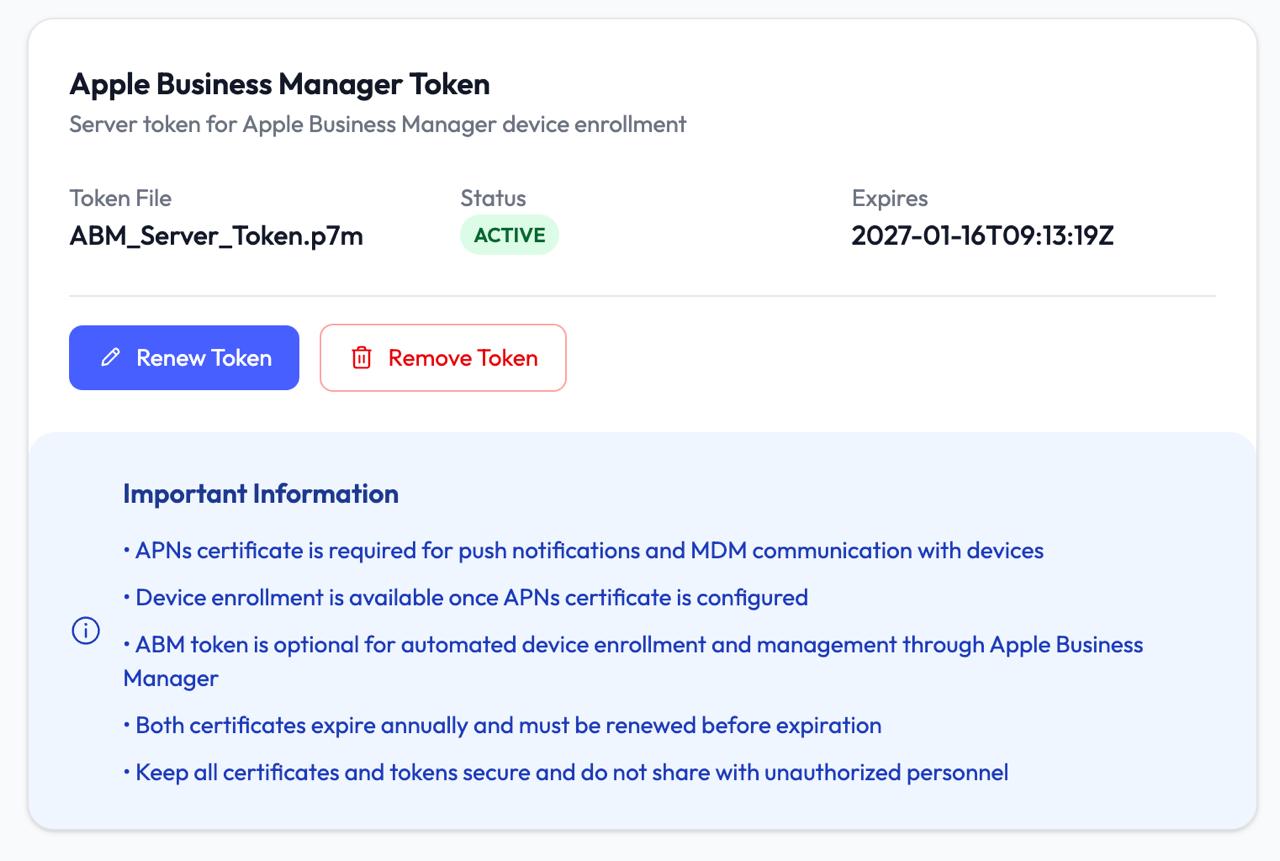
Return to Guard MDM and upload the server token file. Once uploaded, the ABM integration will be complete and you can start enrolling devices through Apple's DEP.